

Using the screener
Understanding screener filters
The screener filters control which stocks appear in your main stock list. By combining momentum categories with investment filters, you can narrow thousands of stocks down to a focused list that matches your investment criteria.
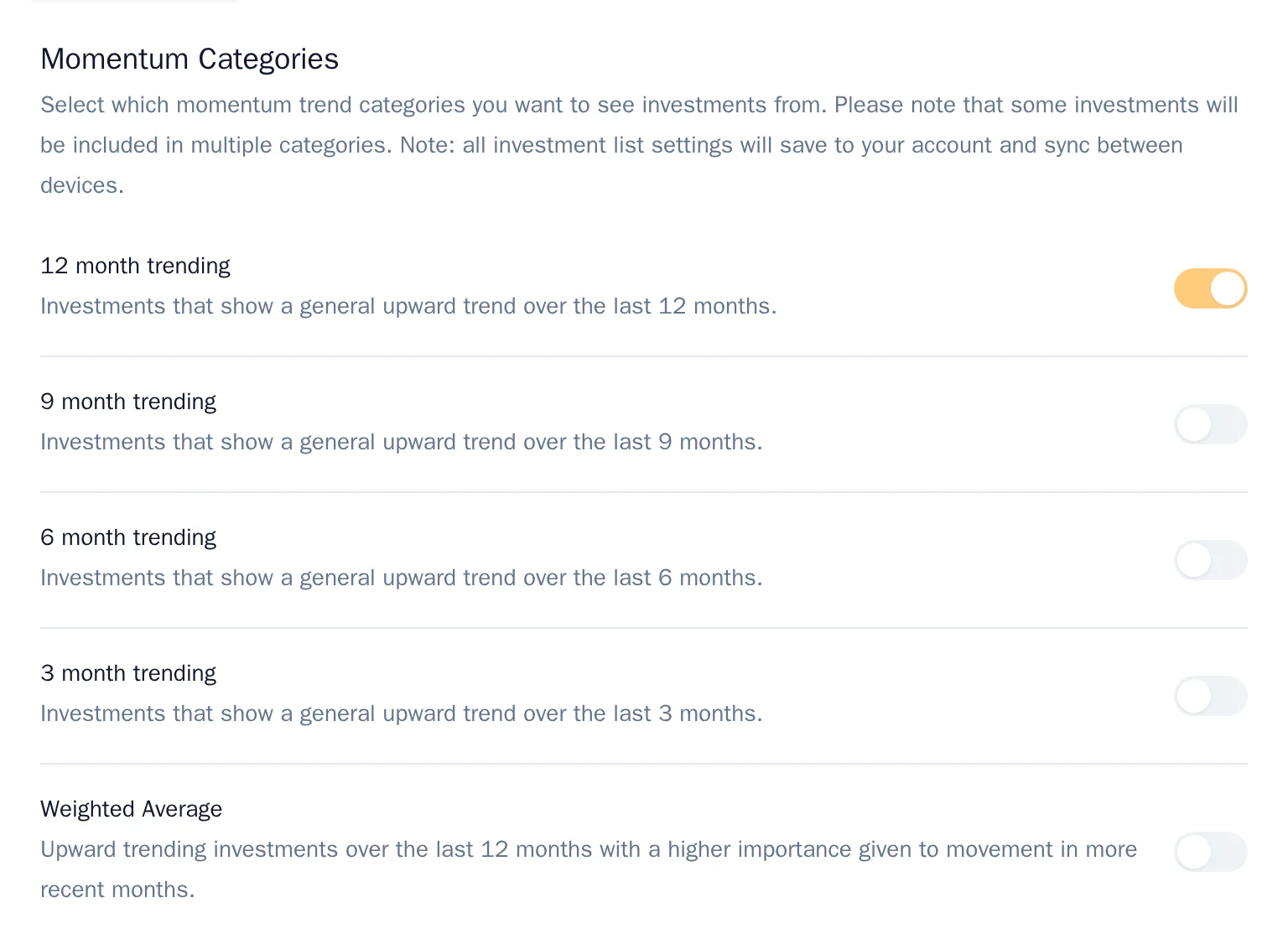
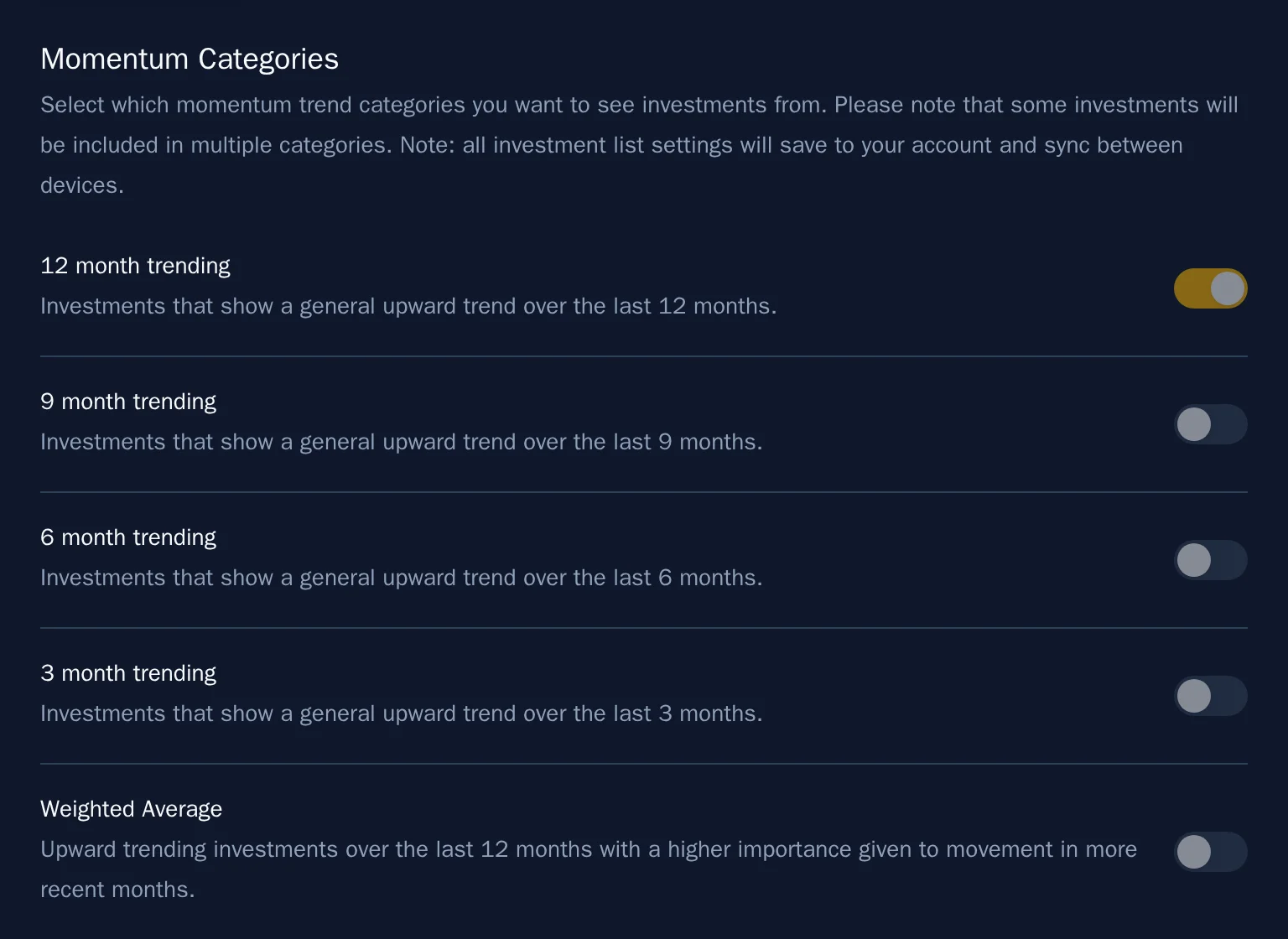
Accessing screener filters
- Click the Settings button in the chart area.
- Confirm you are on the Investment List tab.
- Here you will find momentum categories at the top and investment filters below.
Changes save automatically and sync across your devices.
Momentum categories
Momentum categories determine which timeframes the screener uses to rank stocks. Each category represents a different lookback period.
Trend categories
These measure price momentum—how much a stock has gained over a specific period:
| Category | Description |
|---|---|
| 12 Month Trend | Stocks showing the strongest upward price movement over the past year. Best for identifying established leaders with sustained momentum. |
| 9 Month Trend | A medium-term view that balances recent strength with longer-term trends. |
| 6 Month Trend | Captures stocks gaining momentum over two quarters—useful for spotting emerging leaders. |
| 3 Month Trend | The most recent quarter's performance. Highlights stocks with fresh momentum but may include more volatile moves. |
| Weighted Average | Combines all timeframes but gives more weight to recent months. This smooths out noise while still emphasizing current strength. |
Stability categories
These measure volatility—how smoothly a stock has moved (lower volatility = higher stability rank):
| Category | Description |
|---|---|
| 12 Month Stability | Stocks with the smoothest price action over the past year. |
| 9 Month Stability | Medium-term stability ranking. |
| 6 Month Stability | Two-quarter stability view. |
| 3 Month Stability | Recent quarter stability. |
| 1 Month Stability | Very short-term stability—useful for timing entries. |
Trend vs. Stability
A stock can have strong momentum (high trend rank) but also high volatility (low stability rank). The stability rankings help you find stocks that are trending smoothly rather than whipsawing up and down.
How rankings work
When you enable a category (e.g., "12 Month Trend"), the screener includes stocks that rank in the top N for that category, where N is your count setting.
For example, with count set to 30 and "12 Month Trend" enabled:
- The screener shows stocks ranked 1–30 for 12-month momentum
- If you also enable "6 Month Trend," it shows the union: stocks in the top 30 for either timeframe
- This means you would see a maximum of 60 stocks for the two enabled categories, but potentially less, since a stock can be counted multiple times—once for each timeframe
The count setting
The count determines how many top-ranked stocks qualify for each enabled category:
- Lower count (5–20) – More selective, shows only the strongest performers
- Default count (30) – Balanced view of market leaders
- Higher count (50–100) – Broader view, includes stocks just outside the top tier
Investment filters
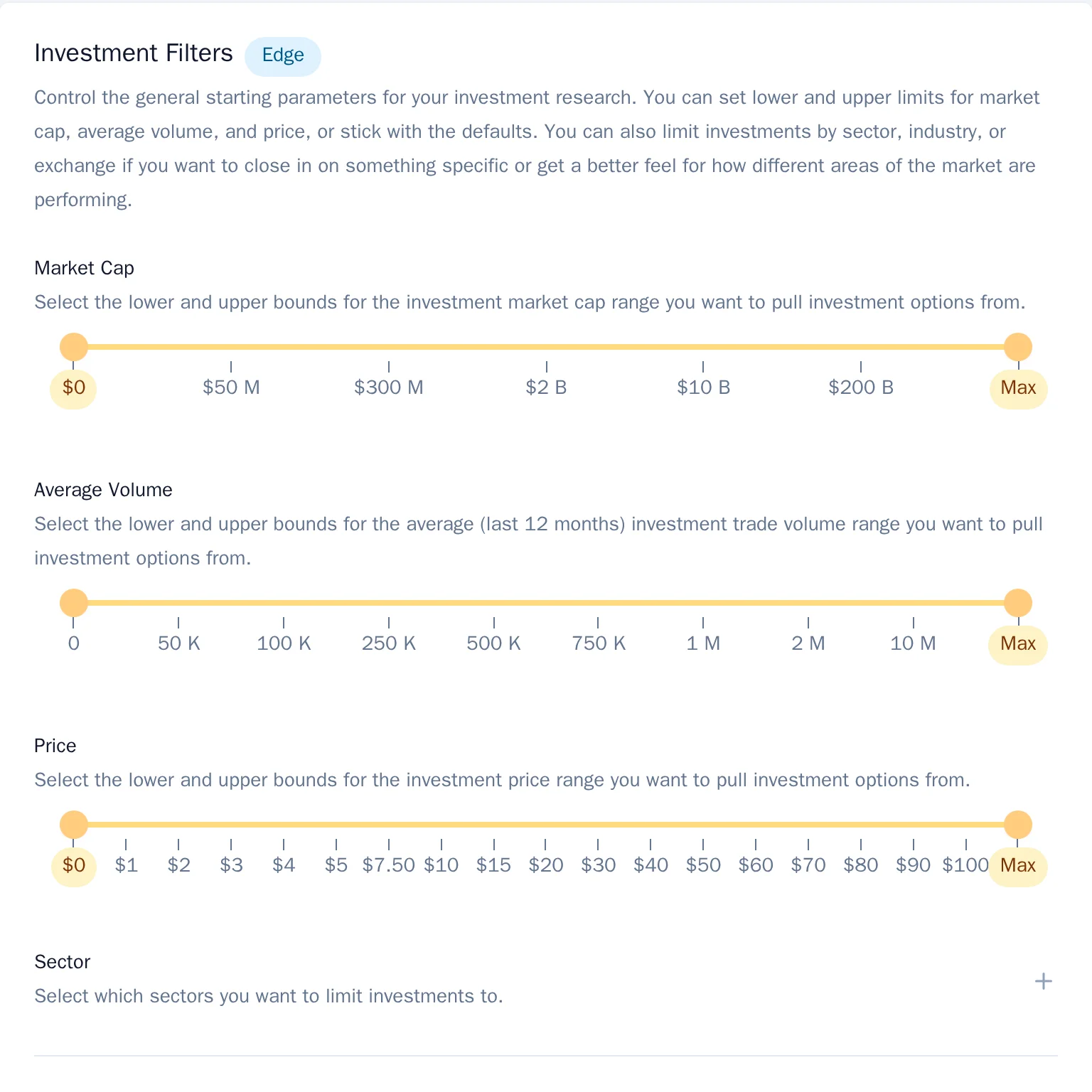
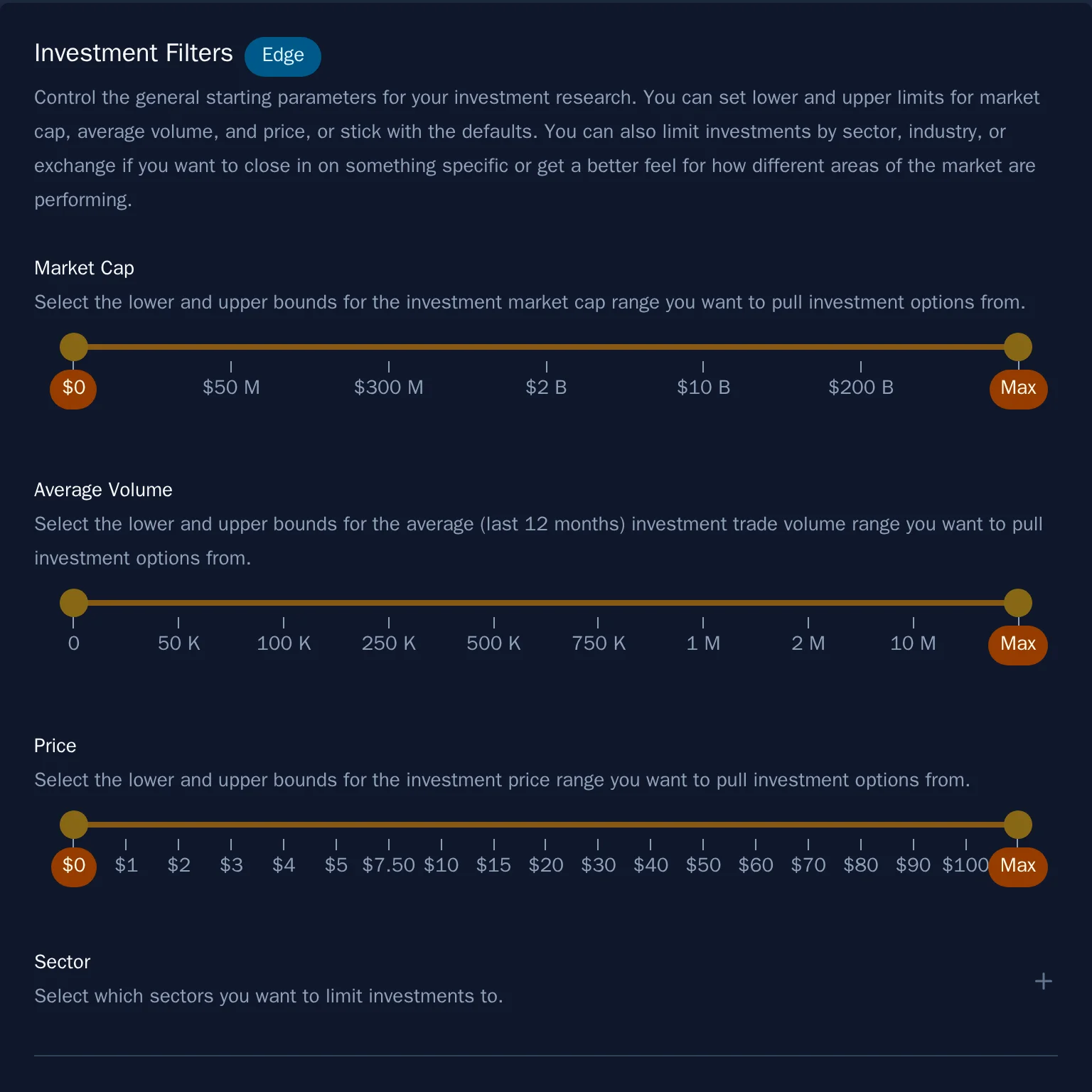
Below the momentum categories, you will find filters that screen stocks by fundamental characteristics.
Market cap range
Filter by company size:
| Range | Typical classification |
|---|---|
| $0 – $300M | Micro-cap |
| $300M – $2B | Small-cap |
| $2B – $10B | Mid-cap |
| $10B – $200B | Large-cap |
| $200B+ | Mega-cap |
Use the sliders to set minimum and maximum market cap. The default excludes micro-caps to focus on more liquid stocks.
Average volume
Filter by trading liquidity:
- Higher minimums (500K+) ensure you can enter and exit positions easily
- Lower minimums may surface less-followed stocks but with wider spreads
Price range
Set minimum and maximum stock prices:
- Minimum $10 (default) excludes penny stocks and very low-priced issues
- Adjust based on your broker's requirements or personal preferences
Sector and industry
Exclude entire sectors or specific industries:
- Click the sector or industry dropdowns to view the list of sectors or industries that can be excluded
- Uncheck sectors or industries you want to exclude
- Useful for avoiding sectors you are already overweight in or have fundamental concerns about
- Momentum Screener defaults to excluding the "Conglomerates" sector and the "Conglomerates" and "Shell Companies" industries, but you can re-enable them at any time to overwrite the default
Exchange filters
Control which exchanges appear in results:
- Major exchanges (NYSE, NASDAQ, AMEX, OTCQX) are included by default
- Other OTC and pink sheet exchanges are excluded by default to focus on more regulated listings
Special inclusions
At the bottom of the list settings, you will find toggles for special lists:
Momentum Screener Favorites (MS+)
When enabled, stocks our analysts are monitoring appear in your table regardless of other filters. These are marked with a special badge.
- This selection is provided for informational purposes only and does not constitute investment advice
Tracking badges
Show or hide badges indicating which major indexes a stock belongs to:
- NASDAQ – NASDAQ Composite members
- S&P 500 – S&P 500 index members
- DJI – Dow Jones Industrial Average members
- Mag 7 – The "Magnificent Seven" mega-cap tech stocks
This is a display preference stored in your browser—it doesn't change which stocks appear in your screener, just whether index badges are visible on matching stocks.
Combining filters effectively
Here are some common filter combinations:
Conservative large-cap focus
- Count: 30
- Categories: 12M Trend, Weighted Average
- Market cap: $10B – Max
- Volume: 500K – Max
- Price: $20 – Max
Growth-oriented mid-cap
- Count: 50
- Categories: 6M Trend, 3M Trend, Weighted Average
- Market cap: $2B – $50B
- Volume: 250K – Max
Low-volatility screening
- Count: 30
- Categories: 12M Stability, 6M Stability
- Market cap: $2B – Max
Resetting to defaults
If you want to start fresh:
- Open Settings → List Settings
- Click Reset to defaults at the top
- Confirm the reset
This restores all filters to their original values without affecting your favorites lists.
Experiment freely
Your filter changes are saved automatically, but you can always reset. Try different combinations to discover what works best for your investment approach.