

Using the screener
Filtering, sorting, and searching the stock list
Above your stock list, you will find a toolbar with icons for searching, filtering, changing the view, and sorting. These tools help you quickly find and focus on the stocks that matter most.
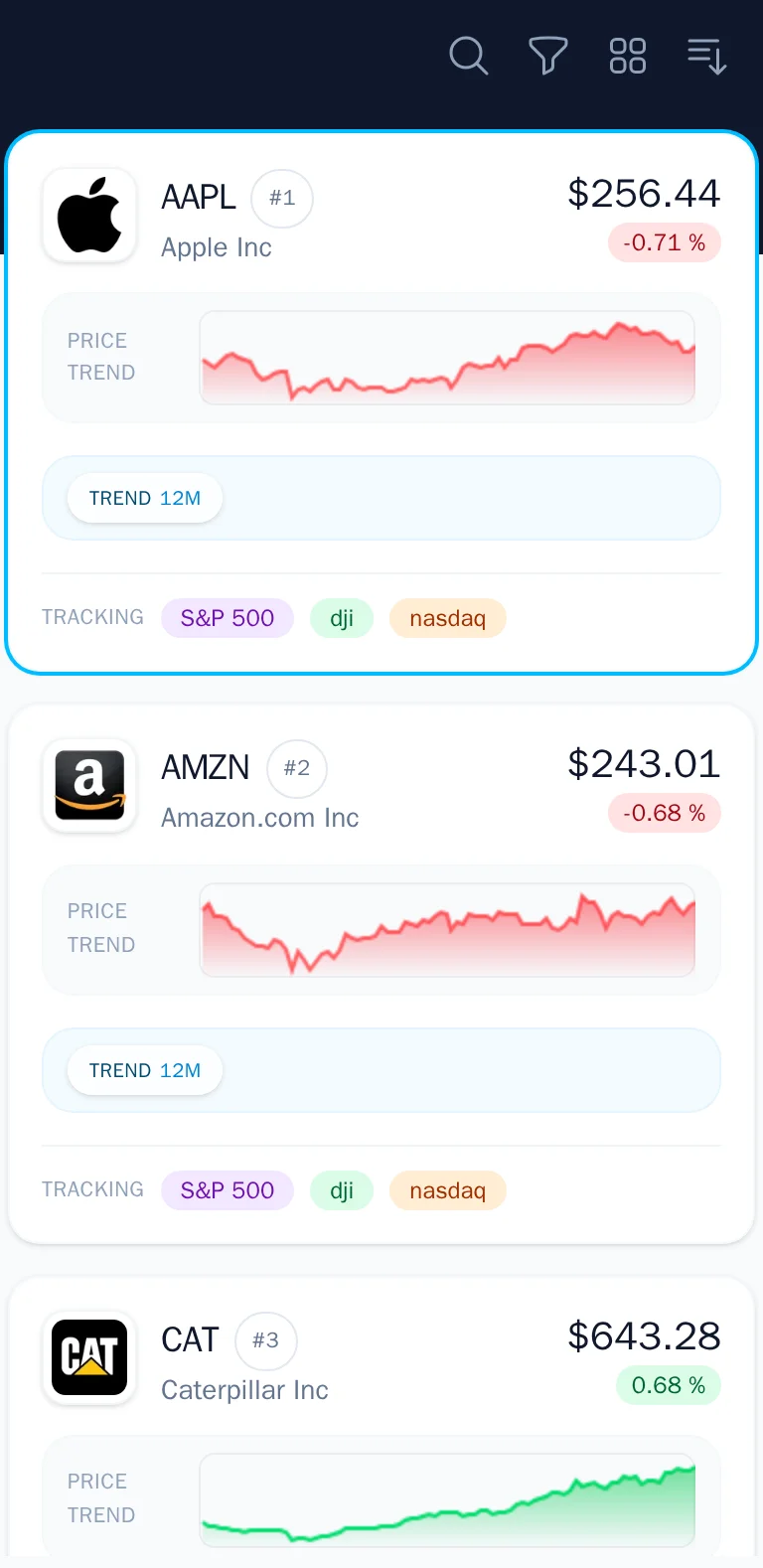
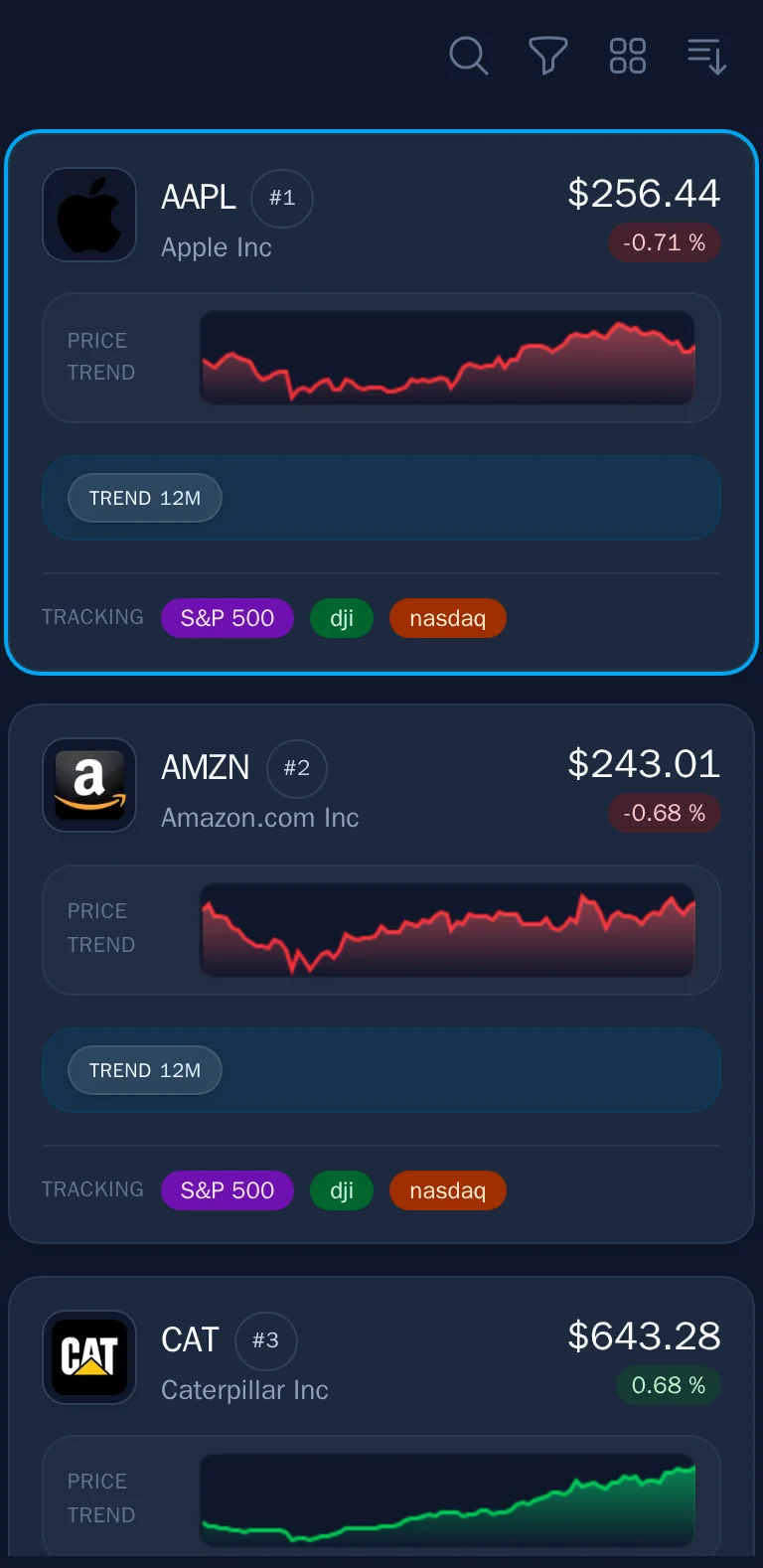
The toolbar icons
From left to right, the icons above the stock list are:
| Icon | Function |
|---|---|
| Magnifying glass | Search – Find stocks by ticker, name, or description |
| Funnel | Filter – Show only stocks in specific favorites or tracking lists |
| Grid | Compact view – Toggle between full cards and compact layout |
| Bars | Sort – Toggle alphabetical sorting |
Searching for stocks
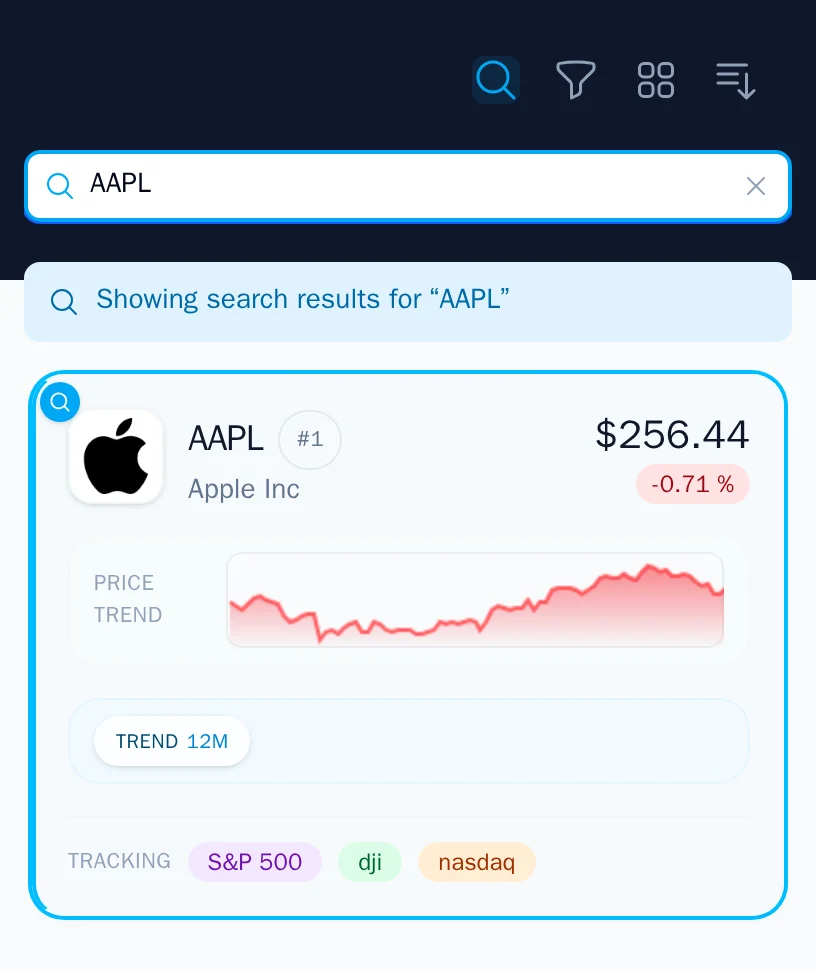
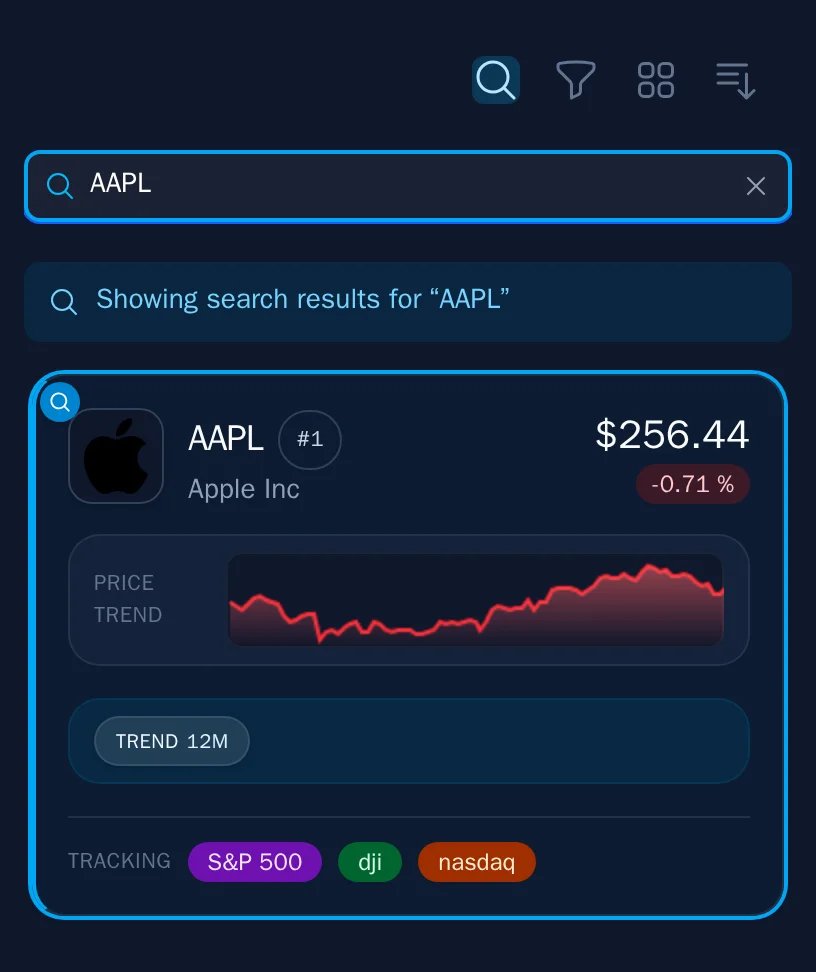
The search feature lets you find any stock—not just those in your filtered list.
Opening search
- Click the magnifying glass icon, or
- Press / (forward slash) anywhere on the page
What you can search
- Ticker symbols – Type "AAPL" to find Apple
- Company names – Type "Apple" or "Microsoft"
- Business descriptions – Type "electric vehicles" or "cloud computing"
The search results will be ordered first by exact matches to the ticker symbol or company name, then by matches at the start of the symbol, name, or description, and finally by matches anywhere in the symbol, name, or description.
Using search results
- Type your query and results appear instantly
- Click any result to select it and load its chart
- The stock is added to your local list so you can continue viewing it during the current session
- Add the stock to a favorites list so it can be included in your list in future sessions as well
- Clear the search or press Escape to return to your filtered list
Search within filters
When you have favorite or tracking filters active, you will see a checkbox:
☐ Search within active filters
- Unchecked (default) – Search all stocks in the database
- Checked – Search only among stocks that match your current filters
This is useful when you have a large favorites list and want to find a specific stock within it.
Keyboard shortcut
Press / from anywhere to jump straight to search. Press Esc to close search and return to the list.
Filtering by favorites and tracking
The filter panel lets you narrow the list to show only stocks in specific collections.
Opening the filter panel
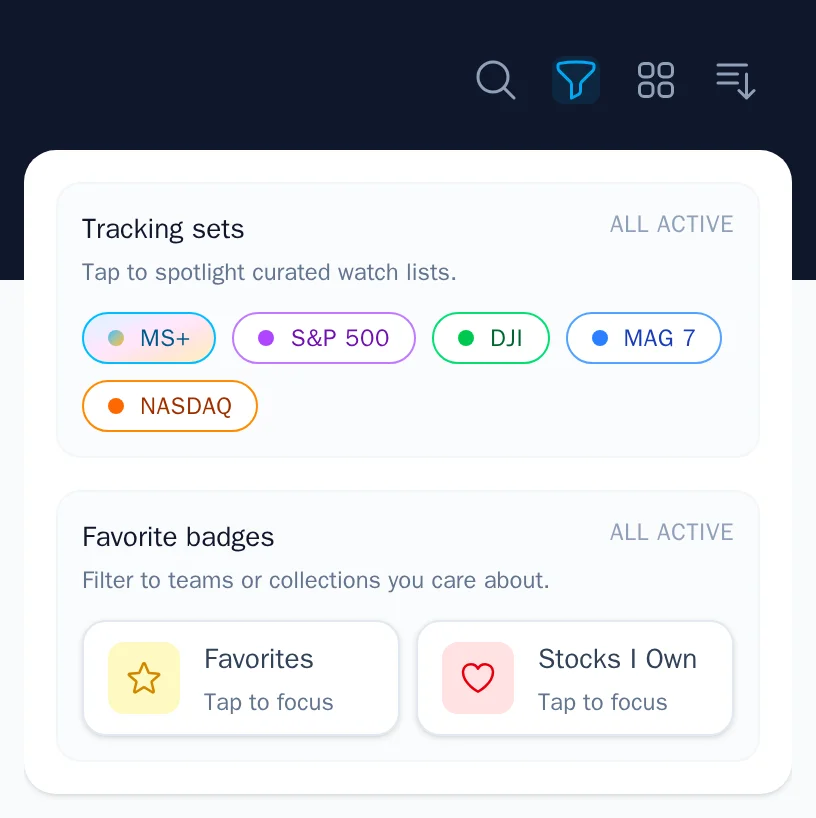
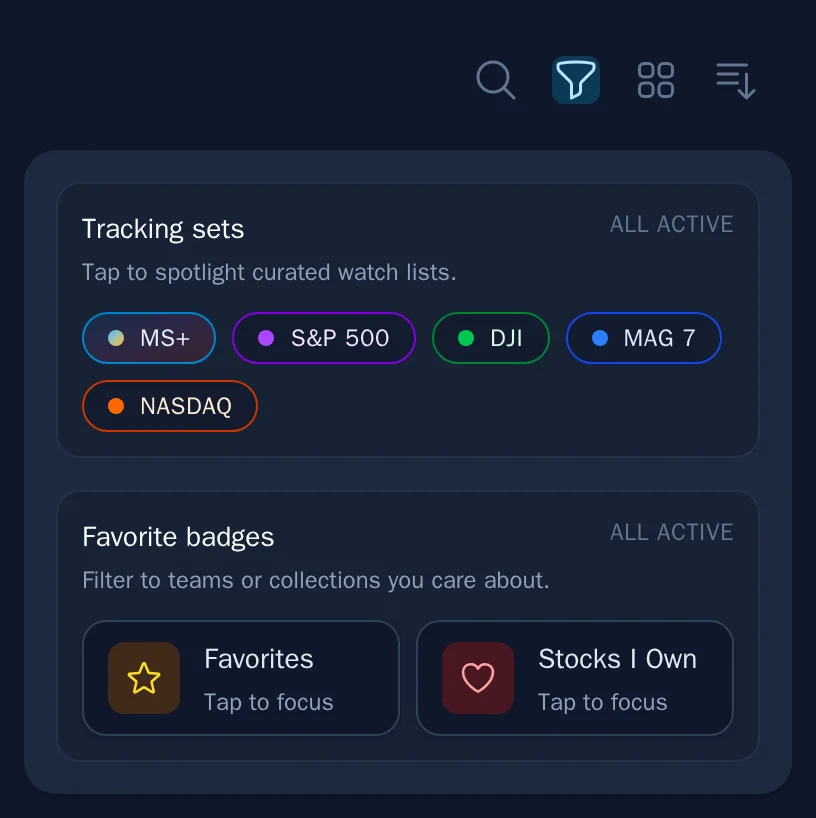
Click the funnel icon to expand the filter options.
Tracking sets
If you have tracking badges enabled (S&P 500, NASDAQ, DJI, etc.), you will see a Tracking sets section:
- Tap a tracking badge to filter to just those stocks
- Select multiple badges to show the union (stocks in any selected set)
- The count shows how many filters are active
Favorites badges
The Favorite badges section shows your custom favorites lists:
- Each list appears as a button with its icon, color, and name
- Tap to toggle filtering by that list
- Select multiple lists to show stocks in any of the selected lists
Clearing filters
- Tap an active filter again to deselect it
- Filters persist until you change them—close the filter panel to browse and reopen it when you are ready to change the filters again
When filters are active, the funnel icon highlights to remind you the list is filtered.
Compact view
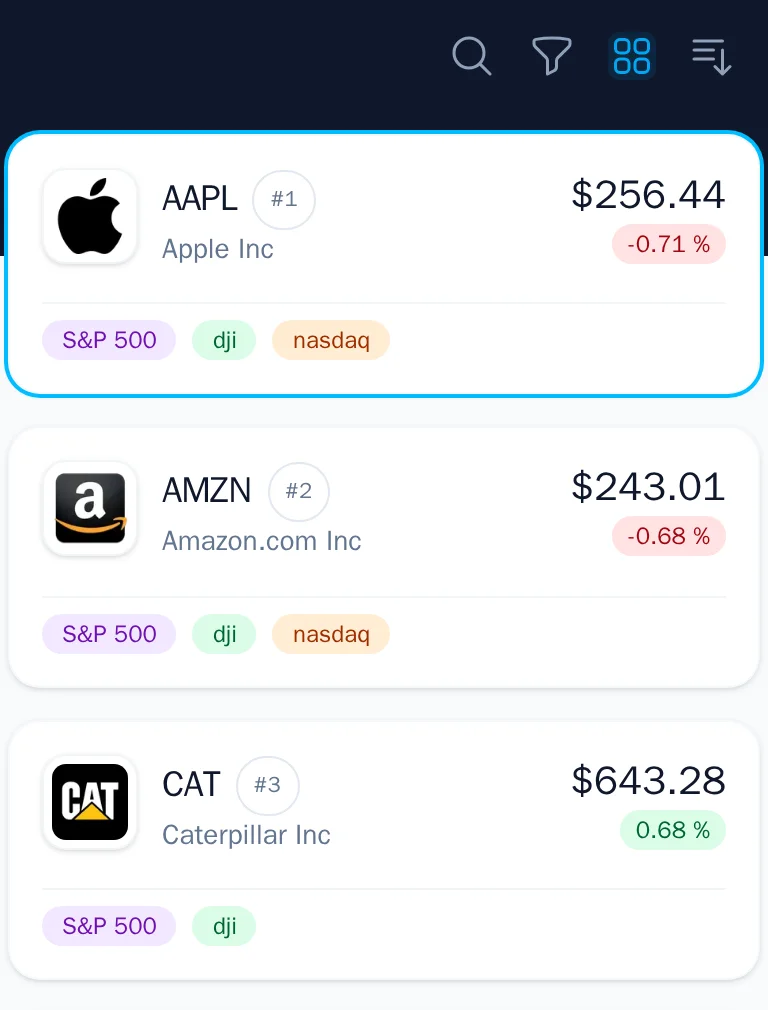
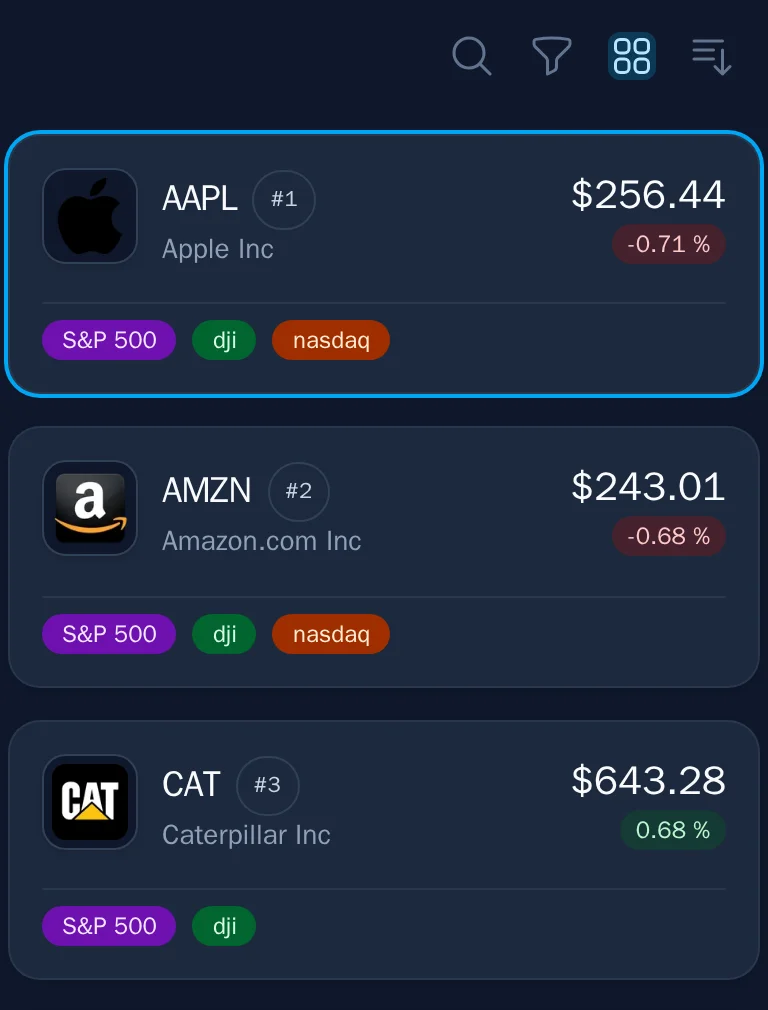
Toggle compact view to change how much information each card displays:
Full view (default)
- Larger cards with all details visible
- Mini price charts on each card
- All badges and qualifiers displayed
- Better for detailed analysis
Compact view
- Smaller cards showing essential info only
- More stocks visible at once
- Faster scrolling through large lists
- Better for quick scanning
Click the grid icon to toggle between views. Your preference is saved.
Sorting options
By default, stocks are sorted by momentum ranking (best performers first). You can switch to alphabetical sorting:
Toggle alphabetical sort
Click the bars icon (with downward arrow) to sort A–Z by ticker symbol.
- When active, the icon highlights
- Click again to return to default momentum ranking
When to use alphabetical sort
- Finding a specific stock – If you know the ticker starts with a certain letter
- Reviewing systematically – Working through your list in a predictable order
- Comparing similar tickers – Seeing stocks with similar names grouped together
Keyboard navigation
Once the stock list has focus, you can navigate with the keyboard:
| Shortcut | Action |
|---|---|
| N | Move to next stock |
| M | Move to previous stock |
| / | Open search |
| Esc | Close search |
These shortcuts make it fast to scan through your list without touching the mouse. Keyboard shortcuts can be modified in Settings → Keyboard shortcuts.
Infinite scroll
The stock list loads more results as you scroll:
- Initially, a batch of stocks loads based on your filters
- As you scroll near the bottom, more stocks load automatically
- "Keep scrolling to load more" appears while loading
- "End of list" appears when all matching stocks are displayed
Performance tip
If you have very broad filters (high count, few exclusions) or many favorites, the list may be large. Use additional filters or search to narrow down when you are looking for something specific.
Combining tools effectively
Here are some common workflows:
Review your watchlist
- Open filters → select your "Watchlist" favorites list
- Use default momentum sort to see best performers first
- Switch to compact view if the list is long
Find a specific stock
- Press
/to search - Type the ticker or company name
- Click the result to view the chart
- The stock stays in your view for further analysis
Scan index members
- Open filters → select "S&P 500" tracking
- Toggle alphabetical sort to browse systematically
- Click interesting stocks to review their charts
Review multiple lists
- Open filters → select several favorites lists
- All stocks from any selected list appear
- Badges show which list(s) each stock belongs to
Filters persist
Your filter and sort selections persist while you use the screener. If you navigate away and come back, they will still be active. Use this to maintain your workflow across sessions.