

Using the screener
Creating and managing favorites lists
Favorites lists let you organize stocks into personal collections—whether you are tracking current holdings, building a watchlist of candidates, or grouping by investment thesis.
What are favorites lists?
Favorites lists are custom collections you create to group stocks that matter to you. Each list has:
- A name you choose (e.g., "Tech Growth," "Dividend Kings," "Earnings Watch")
- An icon to visually distinguish it in the interface
- A color that appears as a badge on matching stocks in the main table
When you add a stock to a favorites list, that stock displays a colored badge wherever it appears—making it easy to spot your tracked positions at a glance.
Creating a new favorites list
- Open the Settings panel by clicking the gear icon in the chart area.
- Select the Favorites Lists tab.
- Click Add list at the bottom of the existing lists.
- A new list appears with a random icon and color—click the list to customize it.
- Enter a name for your list (e.g., "Core Holdings").
- Choose an icon and color that help you recognize the list quickly.
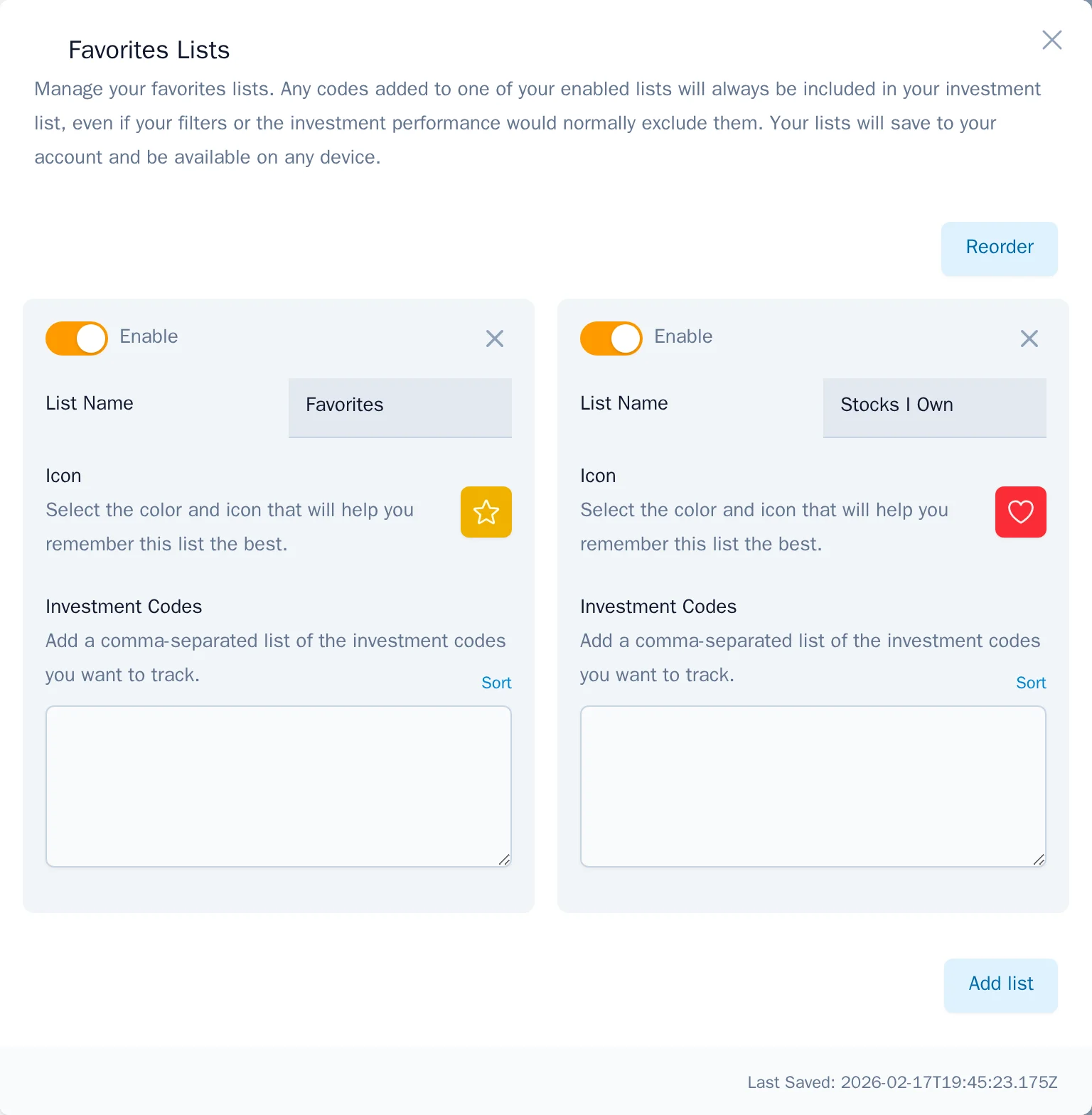
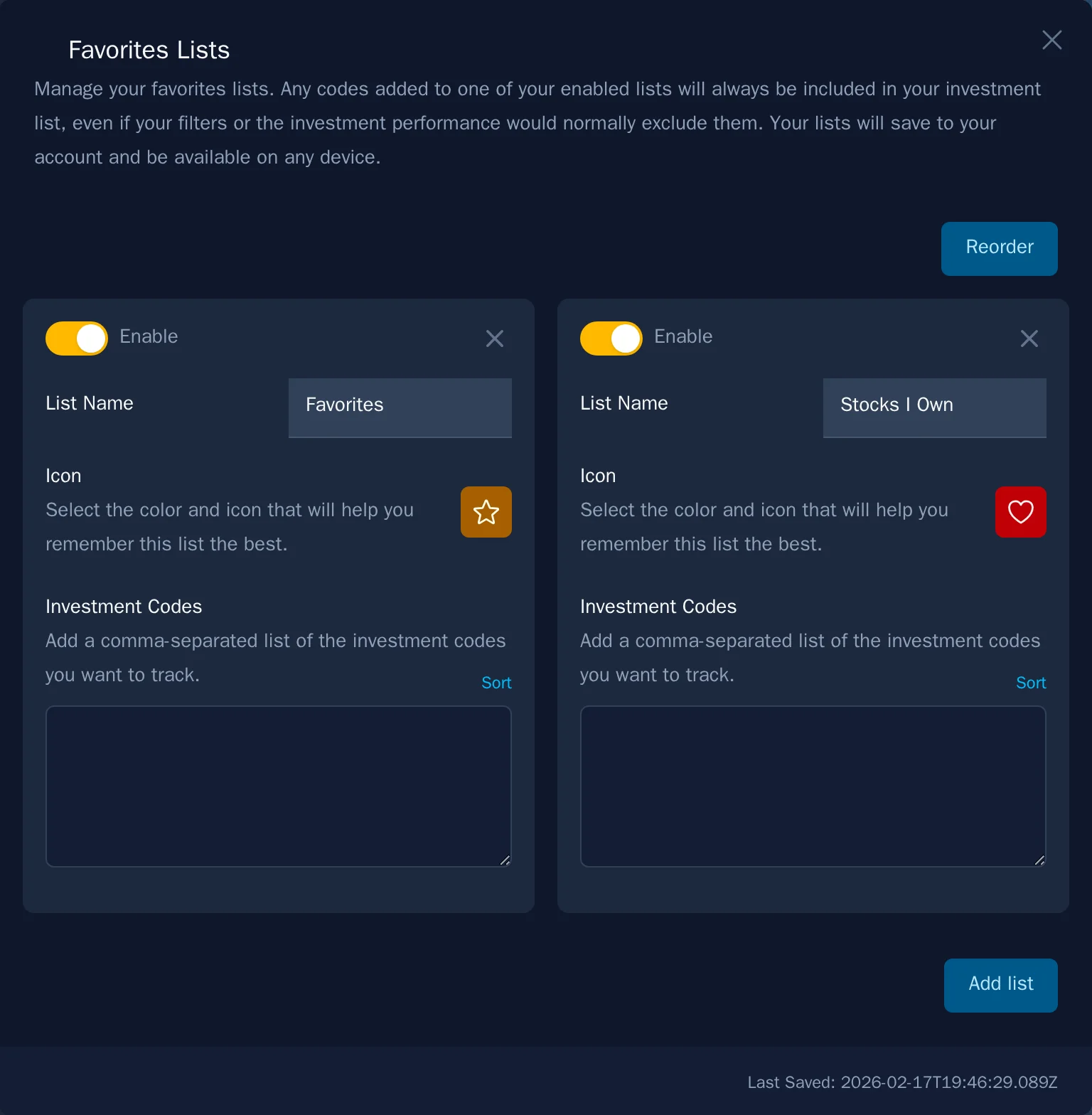
Your new list is saved automatically and syncs across all your devices.
Adding stocks to a favorites list
There are two ways to add stocks to your favorites:
From the stock card
- Click on any stock in the main table to open its detail card.
- Look for the favorites list buttons in the stats column to the right (desktop) or tap the the dropdown arrow below the chart to reveal the buttons (mobile).
- Select the list(s) you want to add the stock to.


From the favorites settings
- Open Settings → Favorites Lists.
- Click on the list you want to edit.
- Use the text field to manually type or paste in stock tickers.
- The list automatically saves and will be reflected in the main table immediately.
Organizing your lists
Reordering lists
- In the Favorites Lists settings, click Reorder at the top.
- Drag lists up or down to change their display order.
- Click Done when finished.
The order you set here controls how badges appear when a stock belongs to multiple lists.
Editing a list
Click any list in the settings panel to:
- Rename it by editing the name field
- Change the icon by clicking the current icon and selecting a new icon
- Change the color by clicking the current icon and selecting a new color
- Enable or disable the list without deleting it (hidden lists won't show badges)
Deleting a list
- Find the list you want to remove.
- Click the X icon in the top right corner of the list.
- Confirm the deletion.
Deleting a list removes it from your account and clears all badges for that list from stocks. This action cannot be undone.
Using favorites to filter the table
Once you have stocks in your favorites lists, you can filter the main table to show only those stocks:
- Click the Filter icon (funnel) above the stock list.
- In the Favorite badges section, tap one or more lists.
- The table instantly filters to show only stocks in the selected list(s).
This is perfect for reviewing just your watchlist or checking how your current holdings are ranking.
Combine with search
When filtering by favorites, you can enable Search within active filters to search only among your favorited stocks—helpful when you have large lists.
Tips for effective favorites lists
- Keep lists focused – A "Tech Growth" list is more useful than a generic "Favorites" list.
- Use colors strategically – Assign similar colors to related lists (e.g., all sector-based lists in shades of blue).
- Review regularly – Remove stocks that no longer fit your thesis to keep lists actionable.
- Leverage multiple lists – A stock can belong to several lists (e.g., both "Current Holdings" and "High Momentum").
Frequently asked questions
How many favorites lists can I create?
There is no hard limit. Create as many lists as you need to organize your research.
Do favorites sync across devices?
Yes. Your favorites lists and the stocks in them sync automatically when you sign in on any device.
Can I share a favorites list with someone else?
There's no built-in sharing feature, but you can copy the ticker list from your favorites settings and send it to someone else. They can then paste those tickers into their own list.
What happens to my favorites if I cancel my subscription?
Your favorites data is preserved. If you resubscribe later, your lists will still be there.
Need help organizing your lists?
Reach out via the contact form and we can suggest list structures based on your investment style.